


How to share your Murena Workspace calendar with an iPhone user – step-by-step guide
Do you already have a smartphone running /e/OS and want to share your calendar with someone who uses an iPhone? Then you’ve come to the right place. In this article, we’ll walk you through the exact steps.
Did you know that an iPhone sends data to Apple 51 times per hour when active, and still 0.7 times per hour when idle?*
Even though we keep hearing these type of unpleasant information about Big Tech companies, it isn’t necessarily easy to break away from them overnight. That’s why we want to make the transition to our operating system, /e/OS – which truly respects its users’ privacy – as easy as possible.
Good news: With /e/OS, keeping your privacy doesn’t mean going off the grid. Even better: Sharing plans with iPhone friends and co-workers using Apple works just fine. Here’s how.
How to share calendars between a device running /e/OS and an iPhone in 4 easy steps
Follow these steps to share your calendar with someone who hasn’t yet bought a Murena device running /e/OS, but still uses an iPhone. To keep it simple, we’ll call this person “the iPhone person.”
Step 1: Make sure you both have a Murena Workspace account
If you want to share your Murena Workspace calendar, you most likely already have a Murena Workspace account. However, the iPhone person needs one too.
They can easily create an account at https://murena.com/workspace/ – 1 GB of storage is free.
Step 2: Create a calendar to share with the iPhone person
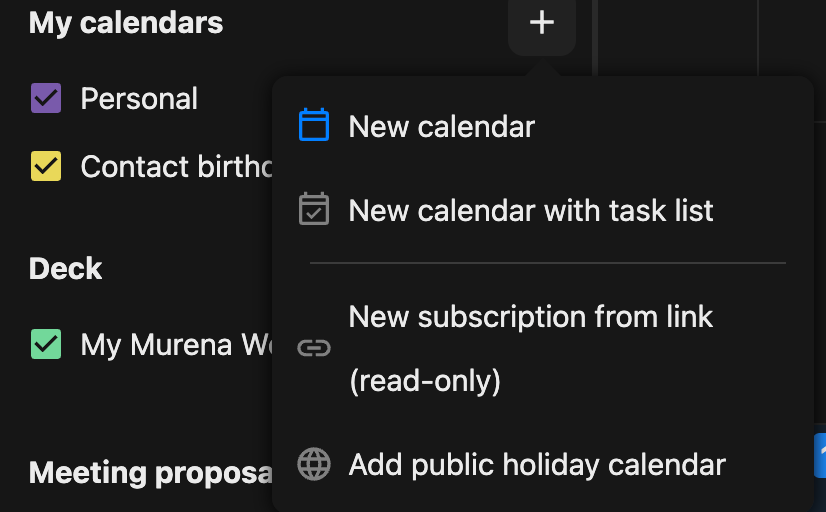
Next, create a new calendar in your own Murena Workspace account and share it with the iPhone person, giving them “edit” permission.
Go to murena.io → the big + sign → New Calendar
Step 3: The iPhone person logs in to Murena Workspace
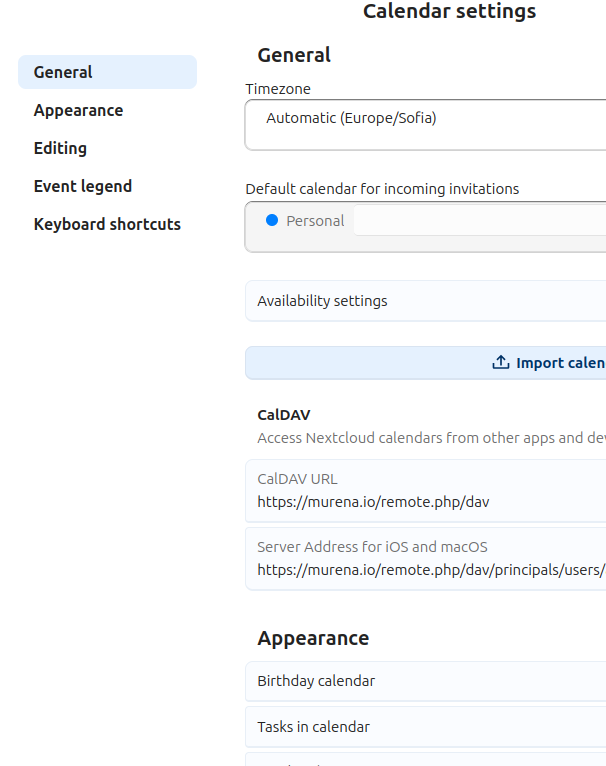
Now it’s time for the iPhone person to take a step away from Big Tech: They log in to their brand-new Murena Workspace account, open the calendar, and go to Settings → Calendar.
Here, they copy the server address, as shown in this screenshot:
Step 4: The iPhone person adds the shared calendar
The iPhone person now opens their iPhone and goes to Settings → Apps → Calendar → Calendar Accounts → Add Account → Other → Add CalDAV Account, using the server address from Step 3 and their brand-new Murena credentials.
From now on, whenever either of you adds an event to the shared calendar, both of you will see it instantly.
Share the news with your iPhone friends & family – so you’ll never miss their events again:
Discover Murena Workspace
Any other questions? Feel free to drop them in the comments!
*https://digitalcontentnext.org/blog/2018/08/21/google-data-collection-research/
FAQs about the Murena Workspace Calendar on devices running /e/OS and iPhones
Does CalDAV work on iPhone?
Yes. The iPhone natively supports CalDAV – that’s exactly what we use in this guide, so no extra app is needed to share your Murena Workspace calendar form your Murena device running /e/OS with an iPhone user.


Leave a Reply